
Form Engine’s Drag-and-Drop functionality, in conjunction with Spark, makes it easy to quickly build and adjust Dynamic Forms by visually moving Form Elements exactly where you want them. No manual layout work required.
How the Feature Works
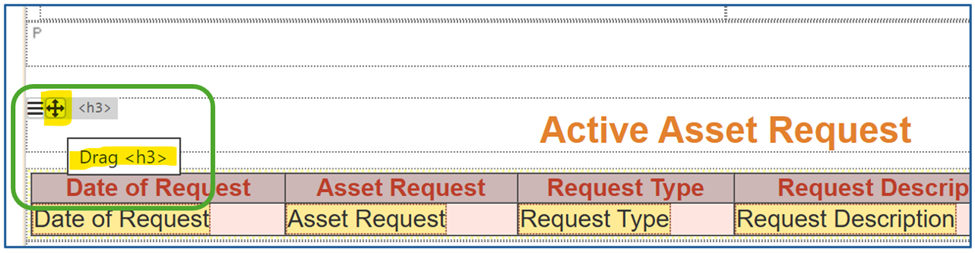
When you hover over the top-left corner of an Element, you will see two icons:
- The Hamburger menu (Actions for the Element)
- The four-pointed arrow icon, which is the new Drag-and-Drop control
To move an Element, place your cursor over the four-pointed arrow icon, click, and drag the Element to its new location.
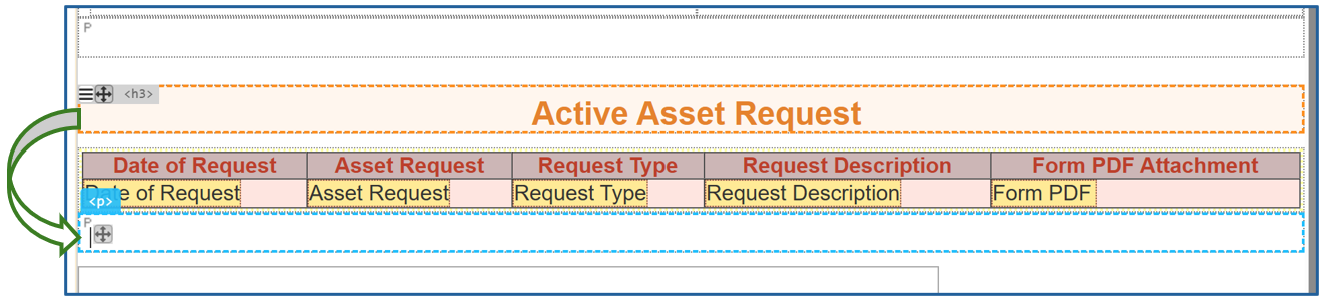
As you drag an Element, blue dashed guide lines will appear, showing you exactly where Form Engine will drop the Element when you release it. This makes it easy to position content precisely within your form layout.
Undoing Changes
If you make an unintentional change, simply click the Undo button located in the Toolbar. The Undo button can reverse multiple changes, as long as you have not clicked Save.
Once you click Save, the Undo button will no longer undo previous changes.
Supported Elements
Drag and Drop works with the following Elements, even when they are nested inside other Elements:
- Divs
- Paragraphs
- Headers
- Grouped elements
- Tables
NOTE: Table cells cannot be moved outside of their table.
For a full walkthrough and additional tips, see the video below.
Related Articles:
- Builder Quickstart Video
- Live Demo - How to build a Dynamic Form
- Live Demo - How to build a Mobile Form
- Form Engine Spark
- Getting Started with Spark
- Form Engine Spark - Functions and Prompts